
Add Multiple Choice List Items

Updated: Mar 5
ServiceNow administrators often need to manage choice lists—dropdown menus that provide predefined options for fields like "Priority" (e.g., "High," "Medium," "Low") or "Category." Adding or updating these choices one by one can be a slow, click-heavy process. The Add Multiple Choice List Items tool, available in the Altorra PowerClick Toolkit, solves this by allowing admins to add multiple options to a choice list in one go, significantly reducing time and effort.
How to Access the Tool
To use this tool:
Navigate to the configuration or administration panel for a field in ServiceNow (e.g., within the "Incidents" module or a dictionary entry).
Under the "Related Links" section, click on Add Multiple Choice List Items (ASI)
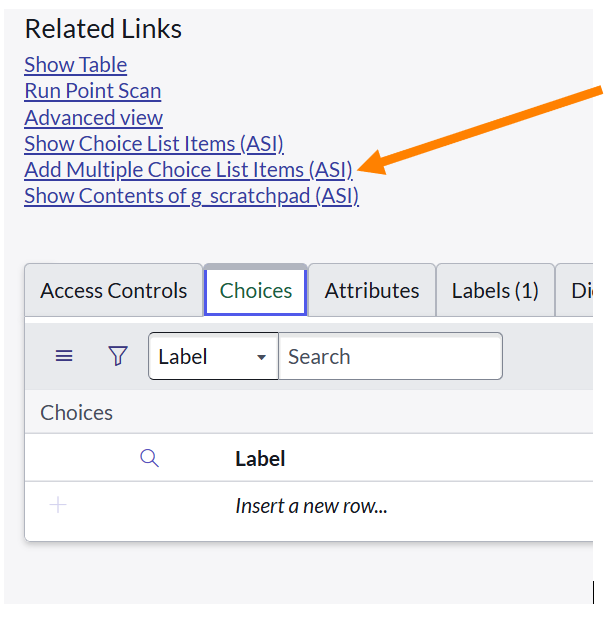
This action opens a popup UI page, where you can configure and add multiple choices efficiently.
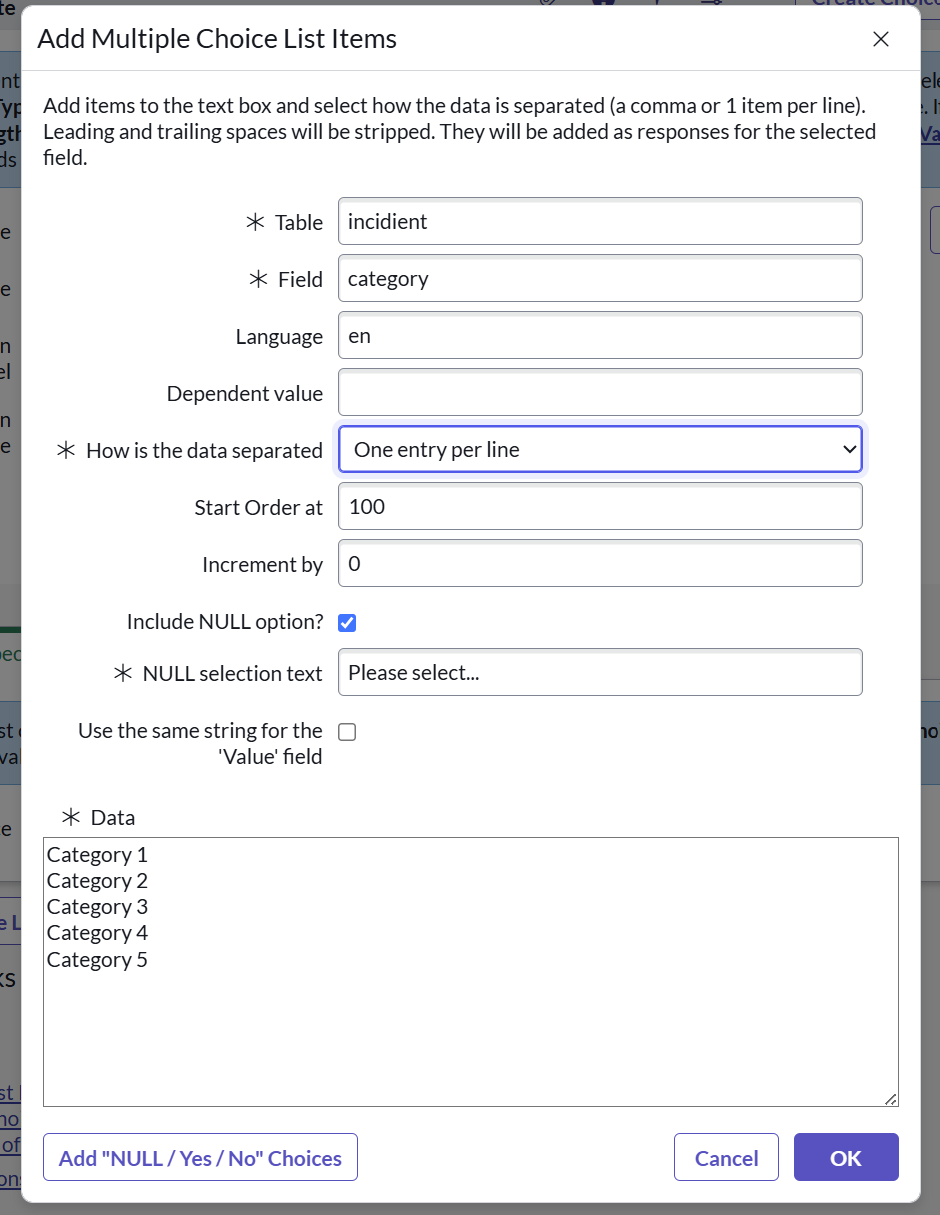
Exploring the Popup UI Page
The popup, offers a range of options to customize how choices are added. Here’s a breakdown of each option and its purpose:
Table
What it does: Specifies the table the field belongs to.
Default: Pre-filled with the table the field is defined on (e.g., "incident" for an incident-related field).
Why it matters: Ensures the choices are added to the correct table without manual entry.
Field
What it does: Defines the field to receive the new choices.
Default: Pre-filled with the field name from the dictionary entry.
Why it matters: Targets the exact field needing options, saving time.
Language
What it does: Sets the language for the choices (e.g., "en" for English).
Default: Matches the user’s current language.
Why it matters: Ensures choices display in the user’s preferred language automatically.
Dependent value
What it does: Specifies a value if the field depends on another (e.g., a subcategory depending on a category).
Default: Blank, unless a dependency exists.
Why it matters: Supports complex fields with dependencies, though often left empty for simplicity.
How is the data separated
What it does: Lets you choose how to format your input: "Comma-separated string" (e.g., "Option1, Option2") or "One entry per line" (e.g., Option1 on one line, Option2 on the next).
Default: Depends on your data source; "One entry per line" is selected in Image 3.
Why it matters: Offers flexibility to paste data from spreadsheets or lists without reformatting.
Start Order at
What it does: Sets the starting number for the "Order" field, which controls the sequence of choices in the dropdown.
Default: 100.
Why it matters: Allows precise control over the display order.
Increment by
What it does: Defines how much the "Order" number increases for each new choice. Choose numerical order (e.g., increment by 10: 100, 110, 120) or alphabetical order (increment = 0).
Default: User-defined; set to 0 for alphabetical sorting.
Why it matters: Conveniently increments sequence number.
Include NULL option?
What it does: Adds a "NULL" choice to override the default "-- None --" option
Default: Unchecked unless selected.
Why it matters: Provides a custom "no selection" option for better form clarity.
NULL selection text
What it does: Customizes the text for the NULL option (e.g., "Please select...")
Default: "Please select..."
Why it matters: Makes dropdowns more user-friendly with tailored prompts.
Use the same string for the 'Value' field
What it does: If checked, the input text (e.g., "Category 1") is used for both the display label and the technical value. If unchecked, the value becomes a lowercase version with underscores (e.g., "category_1").
Default: Unchecked for standardized values.
Why it matters: Balances ease of use with technical consistency.
Data Text Box
What it does: A multi-line box where you enter the choice items
Default: Empty until filled.
Why it matters: The core input area for adding multiple choices at once.
"Add 'NULL / Yes / No' Choices" Button
What it does: Instantly configures the options to add a standard set of "NULL," "Yes," and "No" choices.
Why it matters: Speeds up setup for common fields like approval statuses.
Action Buttons
OK: Saves the choices and applies them (green button in Image 3).
Cancel: Closes the popup without saving.
Seeing the Results
After clicking "OK," the choices appear in the "Choices" tab. For example:
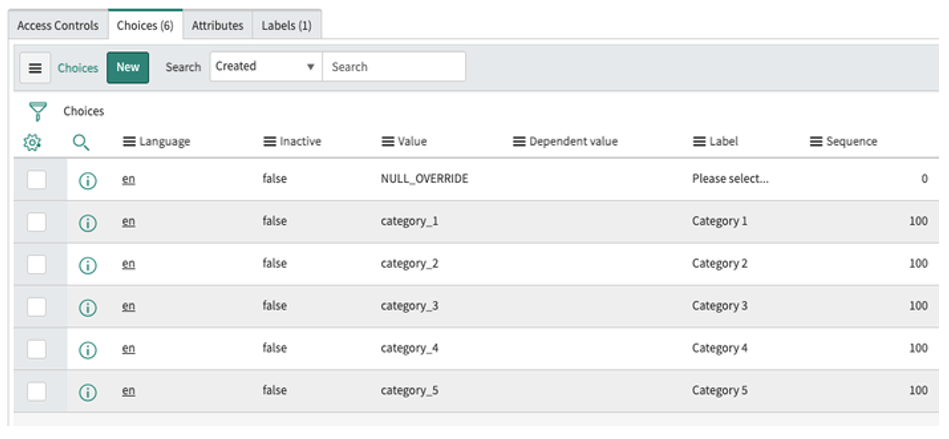
NULL_OVERRIDE: Reflects the "Include NULL option?" with "Please select..." as the label.
Values: Lowercase with underscores (e.g., "category_1") since "Use the same string" was unchecked.
Sequence: All set to 100 with no increment, suggesting alphabetical sorting within that order.
Why This Tool is Valuable?
This tool transforms a repetitive task into a quick, streamlined process. Here’s why it’s a game-changer for admins:
Saves Time: Add dozens of choices in seconds instead of manually entering each one.
Reduces Errors: Fewer clicks and manual inputs mean fewer mistakes.
Flexible: Handles various data formats (comma-separated or line-by-line) and sorting preferences.
Customizable: Add a tailored NULL option or standardize values for technical use.
Efficient: The "NULL/Yes/No" button speeds up common setups.
The "Add Multiple Choice List Items" tool is like a shortcut for ServiceNow admins, turning a tedious chore into a fast, accurate process. Whether you’re managing a few options or hundreds, it’s designed to save time, keep things organized, and let you focus on bigger tasks.
If you still have any questions, comments, or need any support with this tool or others, please reach out to us, by visiting https://www.altorra.com/support
Be sure to also explore the other powerful tools in the PowerClick Toolkit, along with our other exceptional products, designed to streamline your daily tasks, boost efficiency, and save you valuable time.


Comments